What Learn, Practice and Rehearse do in each contest, what to watch on your Team tab, and one tip.
Chess Grades 2–8
- Learn
- Short lessons on each skill, from how the pieces move to checkmate patterns.
- Challenges
- A daily five, a warm-up, and a Mistake lab that brings back missed puzzles; puzzles by skill start from Learn.
- Challenges
- The practice room: a 30-minute diagram test like the booklet, then a separate eight-question, five-minute tiebreaker.
- Team tab
- Your Chess page is laid out for coaches: “Teams & progress” shows each student’s skill readiness and “Next skill to review”.
Tip: Use the Lesson library and Board workshop to put a puzzle or your own position on the classroom screen.
Official UIL page: A+ Chess Puzzle
- Learn
- A lesson per shortcut, each worked through step by step.
- Practice
- Five-question rounds on one skill, a daily five picked for the student, and missed questions that come back.
- Rehearse
- 80 mental-math questions in 10 minutes, scored like the paper.
- Team tab
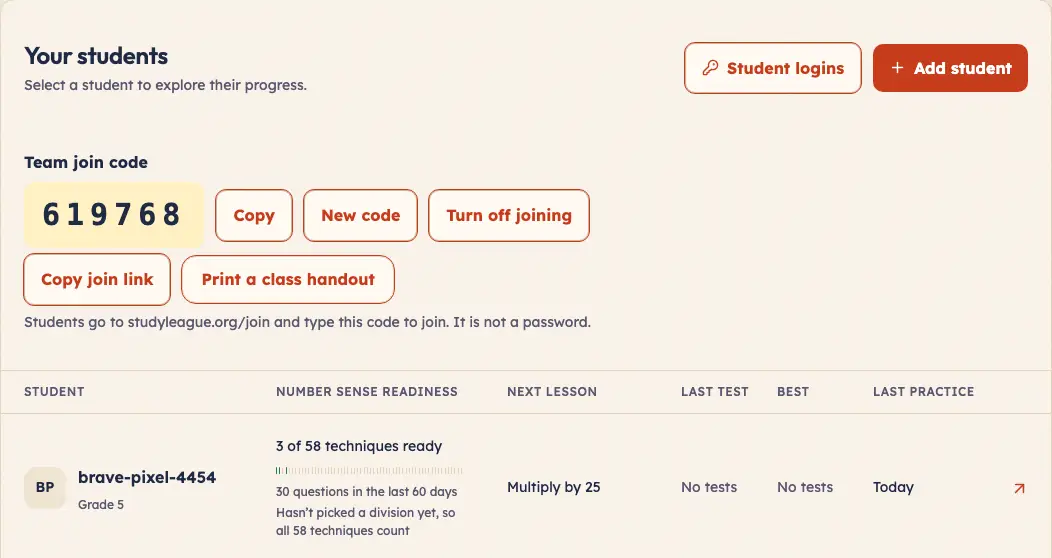
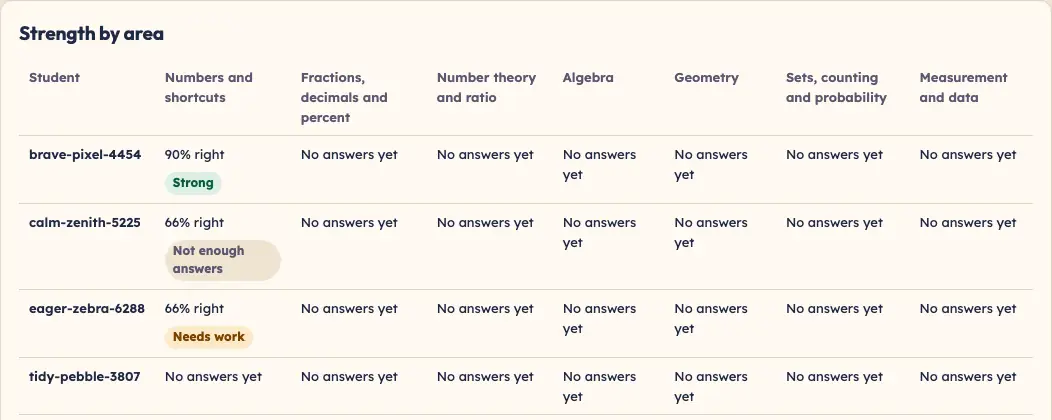
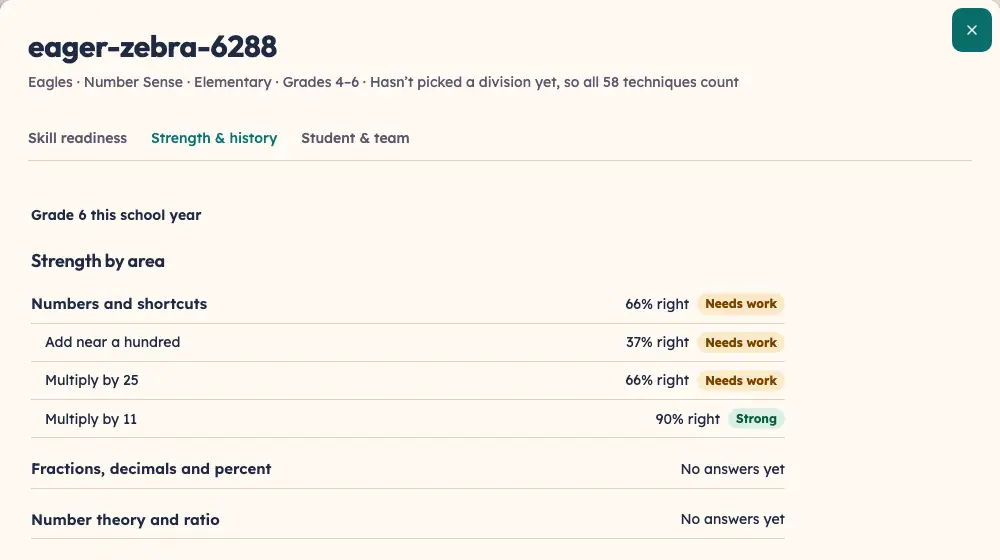
- Number Sense readiness and “Next lesson” for each student, and Strength by area across the team.
Tip: Print practice tests with answer keys from the Team tab for a timed test on paper.
Official UIL page: A+ Number Sense
- Learn
- Lessons unit by unit, every example worked all the way through.
- Practice
- One unit at a time, multiple choice, with the worked solution after each answer.
- Rehearse
- 50 questions in 30 minutes, no calculator.
- Team tab
- Each student’s practice column (answers and accuracy) and “Next to practice”, plus Strength by area for the team and in each student’s Strength & history.
Tip: Have students work on paper during practice; the contest allows no calculator.
Official UIL page: A+ Mathematics
- Learn
- Skill lessons, from legends and scale to latitude, longitude and comparing values.
- Practice
- Practice a skill, one kind of map or graph, or correct past mistakes.
- Rehearse
- 75 questions in 45 minutes.
- Team tab
- Each student’s practice column (answers and accuracy) and “Next to practice”, plus Strength by area for the team and in each student’s Strength & history.
Tip: Students choose grades 5–6 or 7–8 on Learn or Practice; it sets their practice and rehearsal papers, and they can change it.
Official UIL page: A+ Maps, Graphs & Charts
- Learn
- Each piece on the student’s grade list to hear in full, with its performers; a piece the site can’t play yet says so.
- Practice
- A ladder of steps from 20-second clips: “Pick the title”, then the composer, then the grade’s own step, up to writing composer, major work and selection in grades 5–8.
- Rehearse
- A timed paper shaped like the student’s grade; grades 7–8 start with multiple-choice questions from the study guide.
- Team tab
- Each student’s practice column (answers and accuracy) and “Next to practice”, plus Strength by area for the team and in each student’s Strength & history. Each student’s “Practice steps” show how far up the ladder they are.
Tip: Each grade hears its own list, so students choose their grade first; play your class recordings for any piece the site can’t play yet.
Official UIL page: A+ Music Memory
- Gallery
- All 30 works on the list, to study by artist and title.
- Practice
- Name the works, then answer art history and elements questions.
- Rehearse
- Part A names 15 works and Part B asks 30 questions, 30 minutes each.
- Team tab
- Each student’s practice column (answers and accuracy) and “Next to practice”, plus Strength by area for the team and in each student’s Strength & history.
Tip: If your district tests these students on Part A only, set the team’s “Test parts” to Part A only.
Official UIL page: A+ Art
- Learn
- How the test works, finding words with guide words, and where each part of an entry sits.
- Practice
- Pick an area and practice with the student’s own dictionary open.
- Rehearse
- 40 questions in 20 minutes.
- Team tab
- Each student’s practice column (answers and accuracy) and “Next to practice”, plus Strength by area for the team and in each student’s Strength & history.
Tip: Students need their own dictionary beside them for Practice and Rehearse, as in the contest.
Official UIL page: A+ Dictionary Skills
- Learn
- Key-idea cards for each topic at the chosen grade, plus how the test works and when to guess.
- Practice
- Questions by topic, with every choice explained.
- Rehearse
- 50 questions in 45 minutes.
- Team tab
- Each student’s practice column (answers and accuracy) and “Next to practice”, plus Strength by area for the team and in each student’s Strength & history.
Tip: Learn and Practice open on the student’s own grade; they can switch to another grade to review.
Official UIL page: A+ Science
- Learn
- Keying techniques and the rules for writing an answer the way the paper wants.
- Practice
- Problems by type, worked on the student’s own calculator.
- Rehearse
- 80 problems in 30 minutes.
- Team tab
- Each student’s practice column (answers and accuracy) and “Next to practice”, plus Strength by area for the team and in each student’s Strength & history.
Tip: Students should use the calculator they will bring to the meet.
Official UIL page: A+ Calculator Applications
- Learn
- Key ideas and primary sources on this year’s outline, for each division.
- Practice
- Questions by topic, reading sources the way the test does.
- Rehearse
- 40 questions in 30 minutes.
- Team tab
- Each student’s practice column (answers and accuracy) and “Next to practice”.
Tip: Check that each student practices their own division’s outline.
Official UIL page: A+ Social Studies
- Learn
- Study the word list, hearing each word and its meaning.
- Practice
- Rounds of ten words: hear it, spell it, check it.
- Rehearse
- A timed paper at contest pace, sized for the student’s division.
- Team tab
- Each student’s practice column and “Next to practice”, Strength by area, and the words the team misses most.
Tip: Drill the team from “Words the team misses most” before the meet.
Official UIL page: A+ Spelling